

 Milq
Milq
By Milq
How to Build an iOS App From Your Phone (No Mac Required)
Build your first SwiftUI app from your iPhone with Milq. Follow sample prompts for a habit tracker, preview it remotely, and test each change without a Mac.
A good first iOS app does one small job well. In this guide, that job is tracking a few daily habits: create a habit, mark it complete, and come back to it later. You will use Milq on your iPhone to describe the app, preview a remote simulator build, and refine the result through follow-up prompts.
Use the sample prompts below as a starting point for your own project in Milq's iOS app builder. Each step includes a behavior to check, so you can decide when your version is ready for the next feature.
What you need before you start
Install Milq from the App Store on a compatible iPhone, sign in, and follow the app's setup for its remote Mac environment. Check the listing for current device requirements and the app for available plans and build access. Keep an internet connection available for builds and the streamed preview.
You can work from your phone without owning a Mac. Milq handles compilation on remote Apple hardware. If you want the details of where the code, build, and simulator fit together, start with how Milq works without a local Xcode setup.
1. Define the smallest useful habit tracker
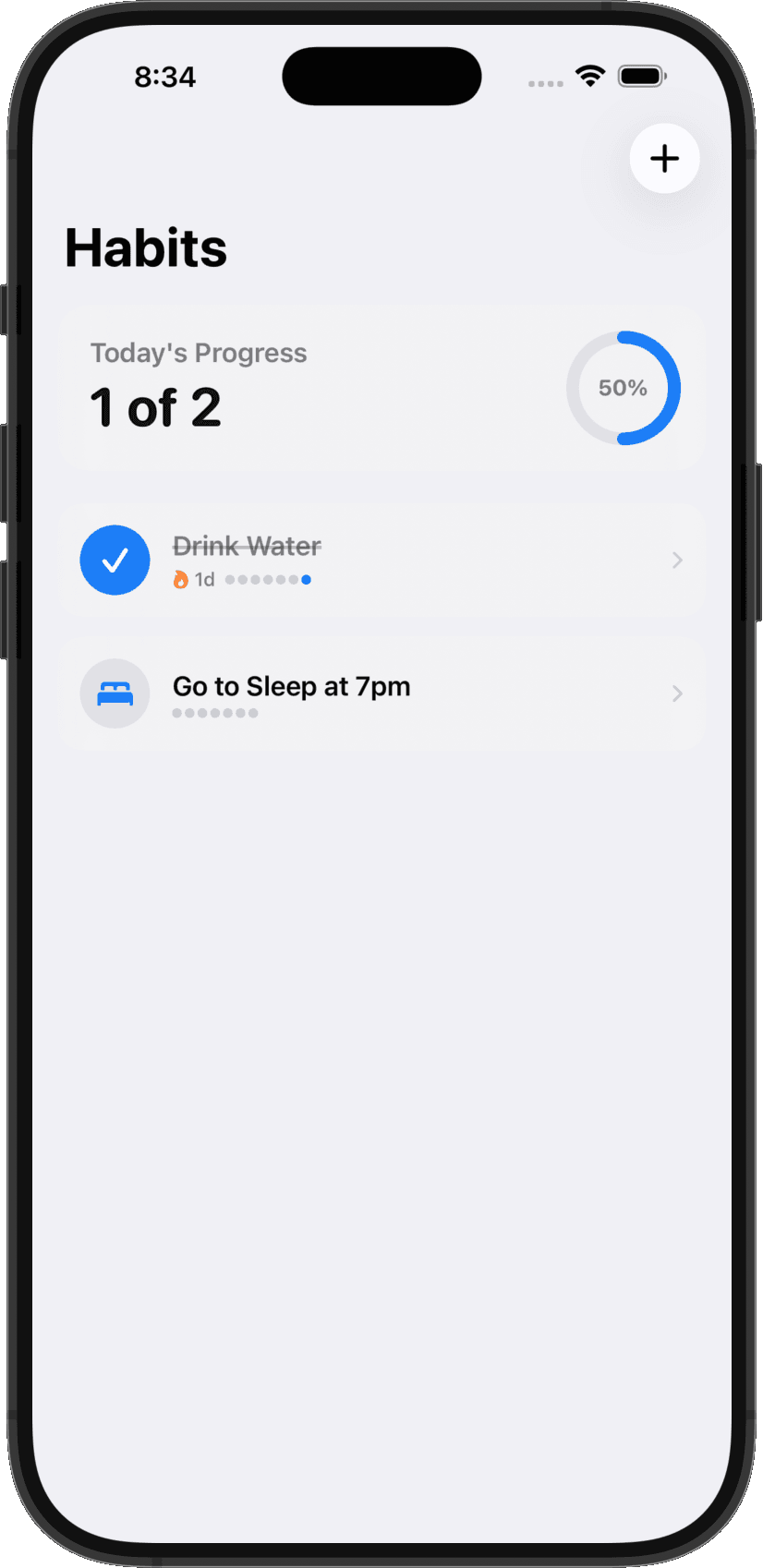
Begin with a Today screen, an Add Habit form, and local storage. Leave reminders, accounts, and social features for a later version. Choose observable behavior for the first build: you can add a habit, see it in the list, mark it complete, and undo that action.
Create a native iOS habit tracker in Swift and SwiftUI. The Today screen should list my habits and show how many I have completed today. Each habit has a name and a button to mark it complete or undo completion. Add a form for creating a habit. Require a nonempty name, and let me cancel without saving. Let me delete a habit after confirmation. Store habits and completion dates locally. Keep previous days' records when the date changes. Use standard iOS controls, readable text, and support the system's light and dark appearance. Start without accounts, reminders, or a backend.
This brief defines both the screens and the rules. The line about completion dates matters: marking a habit complete today should not permanently mark it complete for every future day. Writing that down early gives you a clearer way to judge the result.
2. Build and test the first loop
Let Milq generate the project and build it in the remote Mac environment. When the simulator stream is available, try the simplest journey: create a habit called Read, mark it complete, and undo it. Then create a second habit and check whether the progress total changes correctly.
- Before adding any habits, check whether the empty screen explains what to do.
- Try saving an empty name and a name containing only spaces.
- Cancel the Add Habit form and check that it creates no record.
- Complete one of two habits, then undo completion and check both totals.
- Enter a long habit name and check whether it remains readable.
If the build fails, use the reported error as the starting point for your next instruction. If the app runs but a check fails, describe that specific behavior before requesting more features. Small corrections are easier to evaluate when the app still has only a few moving parts.
3. Report one problem clearly
Imagine that marking Read complete updates its row but leaves the total at zero. Give Milq the starting state, the action, the actual result, and the expected result. This makes the bug reproducible and gives you a precise check to repeat after the fix.
I have two habits, Read and Walk, and neither is complete today. I tap the completion button next to Read. The row changes to completed, but the Today total still says 0 of 2. The total should change to 1 of 2 immediately, and return to 0 of 2 if I undo completion. Fix this behavior while keeping the existing screens and saved data.
For a visual problem, attach a screen reference and circle the relevant area. State the change in concrete terms: make the button easier to tap, let the habit name wrap, or increase the contrast of the progress label. Build again and verify both the changed area and the original add-and-complete journey.
4. Check that data survives a new session
An app can appear to save data while keeping it only in temporary memory. Relaunch the generated app in the same simulator environment and check that your habits and today's completion state remain. Closing the Milq viewer alone may leave the remote app running, so make sure your check actually relaunches the generated app. A reset or replacement of the simulator is a different test and may erase its local data.
Explain how this app stores habits and completion dates. Make sure they survive an app relaunch. Explain what happens at the start of a new day and how I can test that behavior. Keep the data local for this version.
For daily habits, also check what happens when the date changes. Today's count should start fresh while previous completion records remain available. If you later add streaks or history, these rules will be the foundation of those features.
5. Add one feature after the basics work
A seven-day history is a useful next feature because it builds on the data you already have. Describe what each day means, where the history should appear, and how it should react when you change today's completion. Keep the existing behavior stable as you add it.
Add a detail screen for each habit with its completion history for the last seven calendar days, including today. Label the dates and distinguish completed days from missed days. Future dates should not appear. Keep the Today screen and its completion behavior working as before. Use the existing stored completion records.
Repeat the checks from the first version after each feature. For more ways to describe changes, use the examples in our SwiftUI prompting guide.
6. Prepare for testing on your iPhone
Your simulator preview runs on a remote Mac. To evaluate an installed app, use Milq's account portal for the device-build workflow and complete the required signing and device setup. On the device, repeat the core actions, check larger text sizes and appearance settings, and verify saved data after closing and reopening the app.
If you want to distribute a public release, prepare the app for Apple's App Review process. Account setup, signing, screenshots, app information, and any necessary privacy disclosures belong to that stage. A running preview gives you an app to test; release preparation is the next piece of work.
You can also export the Xcode project and continue with a developer on a Mac. The habit tracker remains a Swift project you can extend as its requirements grow.
Start with the first prompt, get the add-and-complete loop working, and use the checks above to guide your next change. You can explore Milq's native workflow on the AI iOS app builder page.
Keep reading
- How to Vibe Code an iOS App Without Xcode Using Milq
Learn how Milq turns prompts into Swift code, builds on a remote Mac, and streams an iOS simulator to your iPhone, without installing Xcode yourself.
- Vibe Coding Swift and SwiftUI: A Practical Prompting Guide
Write better prompts for native iOS apps in Milq. Learn how to describe SwiftUI screens, refine behavior, report bugs, and check the generated app.